The Evolution of AI in Test Automation: From Locators to Generative AI (Part 4)

The Evolution of AI in Test Automation: From Locators to Generative AI (Part 4) — © Tung Nguyen from Pixabay
We’ve long pursued the promise of ultimate test stability, cycling through new tools and paradigms in test automation. Yet, despite all these evolutions, we keep encountering flaky locators and shifting failures, as if the core issue never left.
For a time, many blamed locators entirely, which led to the rise of computer vision as a more “human-like” approach to mapping screens on mobile devices. Initially, it seemed almost magical, so straightforward and efficient!
Instead of relying on brittle XPath/CSS selectors, computer vision would navigate and validate the UI directly. However, as I’ve discovered, real-world scalability poses its own challenges. Every phone or use case can render outputs differently, forcing us to tackle new problems.
From my experience working on both web and mobile app test automation, these scalability issues stand out even more on mobile devices, though they’re present in web automation, too.
Differences in rendering engines, device specifications, and environments all complicate the effort to build robust, reliable test solutions at scale.
Do we truly have the right approach and tools for computer vision in large-scale, dynamic scenarios and various devices under test (DUT)?
That question drove me to explore new techniques and deeper knowledge, and I’m sharing those insights with you here.
This fourth installment follows from my earlier articles
And in this article (Part 4) we’ll examine the limits of computer vision in large-scale test automation hrough mobile app automation cases, and explain why more advanced AI, including deep learning and generative AI, are needed to address those persistent challenges…
1. Quick Recap: Where Computer Vision Shined
Initially, computer vision felt like magic for a few tasks:
- Template Matching: Identify a specific icon or image snippet on the screen, then tap or verify it.
- Screenshot Comparison: Check if the new version of the app visually matches the reference one (potentially detect regressions).
- **OCR (**Optical Character Recognition): Confirm on-screen text when locators are brittle or missing.
In a controlled environment, a few stable devices, minimal screen variations, these solutions worked great.
2. Understanding the Need for Scaling Test Automation Across More Devices
2.1. What Is an Internal Device Lab?
An internal device lab is basically a collection of physical devices your organization maintains in house.
It’s where engineers can run tests on shared real phones and tablets, often arranged on shelves or in racks.
These devices usually have known screen sizes, resolutions, and OS versions.
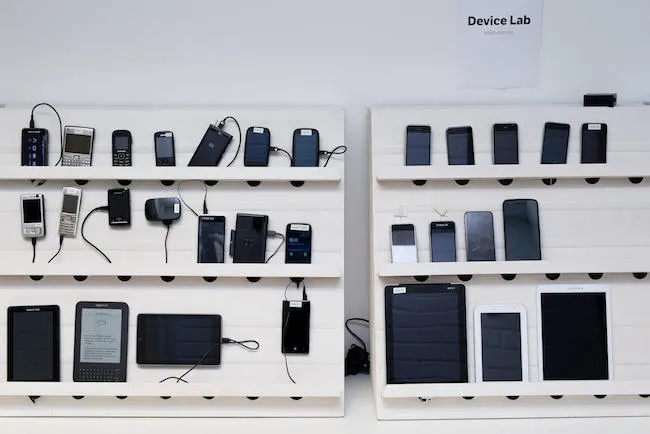
An example: Helsinki’s Open Device Lab was established to help the local web developer community test their work on the ever growing range of mobile devices (no copyright on this image)
In my case, we have a small but controlled environment:
- 2 or 3 Android phones (always the same models).
- 1 iPhone.
- A few older devices lying around for regression testing.
This setup was great for consistency.
It was small enough that we could quickly spot issues and fix them.
But this bubble also prevents from seeing the challenge: does this can scale when we will try to run the test on other device types?
2.2. Enter BrowserStack: The Cloud Testing Reality Check
As soon as any organization starts to have larger audience, it needs to tests on more mobile devices and OS versions, the realize that internal lab is not enough ( furthermore, internal labs comes with high cost of maintains and integration )
We, for example, had only a limited variety of Android and iOS versions, and users “out in the wild” had phones we’d never even seen before.
That’s where BrowserStack came in.
BrowserStack offers a cloud-based testing service with a huge range of real devices both Android and iOS.
You can run automated tests on almost any phone model with different OS versions, different screen sizes, and different configurations.
Agile needs DevOps culture,
DevOps culture needs Continuous Testing,
Continuous Testing needs Running on the Cloud.
With this license, we can test on the latest Samsung Galaxy and the newest iPhone, plus older versions that are still in use.
But what happens if you try to run computer vision–based tests, such as template matching, on all these different devices in the cloud?
That question quickly revealed the limits of our computer-vision-based automation strategy.
3. Understanding The Limits of Traditional Computer Vision On Test Automation
3.1 Template Matching: A Pixel-by-Pixel Trap
A common approach involves template-based image recognition to locate and interact with app elements:
- Capture a small screenshot (a “template”) for example, a user profile icon or login button.
- During test execution, scan the live screen for a perfect or near-perfect pixel match.
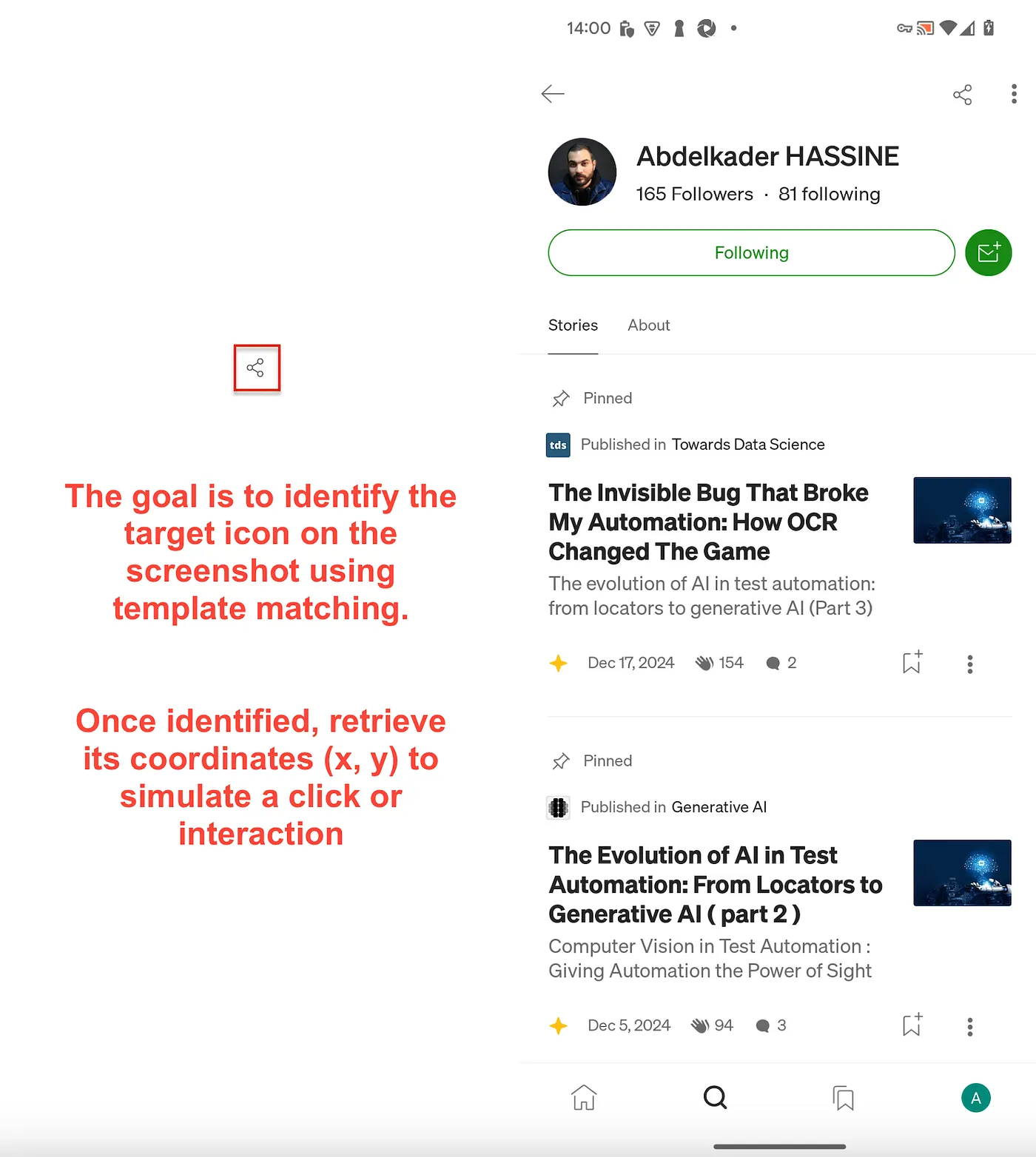
Screenshot to illustrate template matching in Test Automation
In a controlled environment where devices share the same resolution and screen size, templates (user icon for exemple) often match reliably.
Yet, when tests run on unfamiliar devices such as a Google Pixel 7 or an iPhone 13 the same icon may display subtle differences:
- Varying DPI (Density Per Inch)
- Altered color profiles
- Slightly different sizes
The result is frequently: “Template image not found.”
3.2. Why Templates Aren’t Universal On Mobile APPs
When using template-based image recognition, it often becomes necessary to maintain separate templates for Android and iOS.
At first glance, this seems logical, given that each platform follows its own design philosophy.
Yet the question remains:
why manage multiple templates for what is essentially the same icon?
The short answer is: rendering isn’t the same between platforms:
- Material Design (Android): sharp edges, bold colors, and a clearly structured hierarchy. Animations, shadows, and padding often differ based on hardware capabilities.
- Human Interface Guidelines (iOS): rounded edges, softer shadows, and an emphasis on translucency and depth.
So, even if two UIs look similar, the underlying rendering engines handle fonts, edges, and color gradients differently.
Here’s a visual comparison between iOS and Android on Medium Mobile App to illustrate these variations:
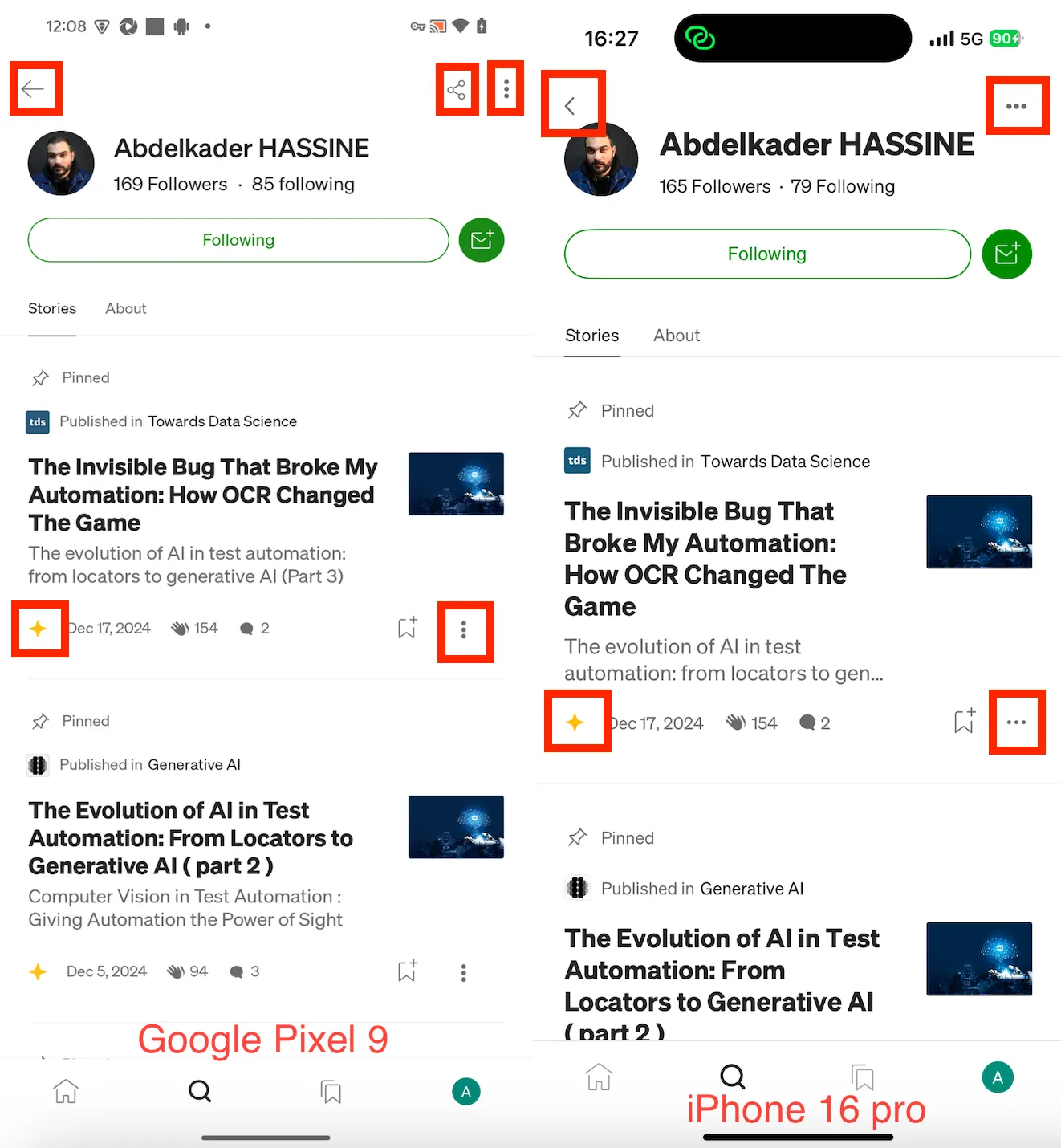
Platform-Specific Differences: iPhone vs. Google Pixel — Medium App Case — Screenshot Done by the author
3.3. Why Templates Fail on Different Devices Even From Same Platform
Platform-based visual differences (Android Vs iOS) seemed logic right?
Get Abdelkader HASSINE’s stories in your inbox
Join Medium for free to get updates from this writer.
That’s not all.
There are more reasons why template matching can fail, even on the same platform, such as between Samsung and Google Pixel or Xiaomi devices:
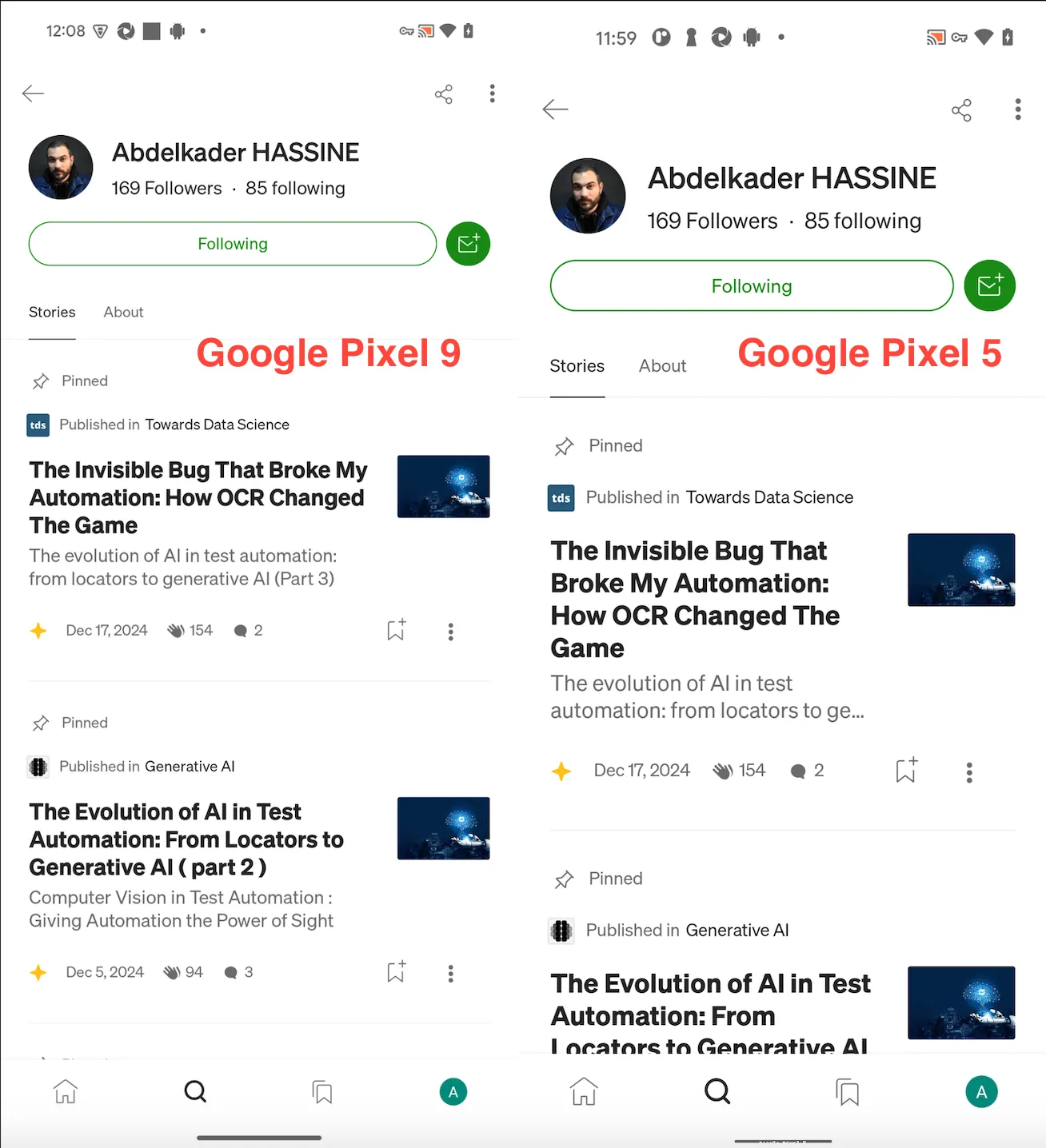
Screenshot from author’s laptop showing medium rendering on different mobile phones from the same OS — Different Android Phones means Different Rendering
- Screen Sizes & DPI (Dots Per Inch)
- The same icon might be 50×20 pixels on one device but 60×24 on another.
- A higher DPI phone compresses the same UI into fewer or more pixels.
- Pixel-perfect matching fails because the reference template no longer lines up.
2. Color Calibration
- Samsung is known for vibrant, oversaturated colors.
- Google Pixel tends to lean toward more natural, muted tones.
- Apple devices often have warmer color profiles for user comfort.
- Tiny color differences throw off exact pixel matches.
In an internal device lab, these variances are minimized because you can keep everything consistent — usually same devices that have same OS versions and same screen size etc..
However, for more effective testing, a wide range of devices — often managed via a cloud environment — is essential.
With countless device types, the same templates cannot be used across all devices.
3.4. Image Comparison: A Similar Principle at Play
The same principle applies to image comparison.
Just as template matching struggles with variations in DPI, color calibration, and rendering differences across devices, image comparison tools face same challenges ( might be worse ).
While it is supposed to detect visual discrepancies or verify UI consistency, its effectiveness depends heavily on maintaining a controlled environment.
Minor variations in device screens, operating system can lead to false negative (claiming bugs that doesn’t exist) or missed mismatches.
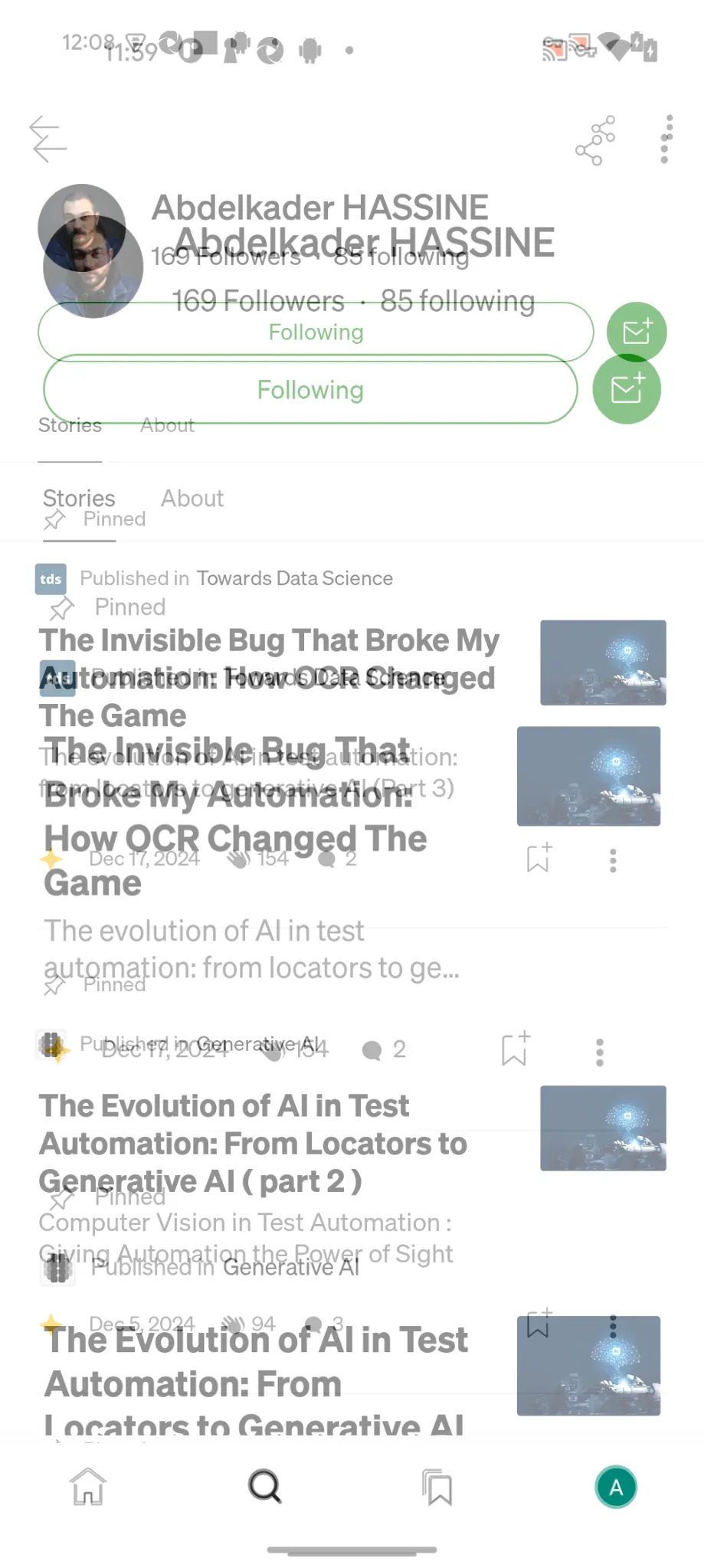
A visual example of overlapping and misaligned UI elements while no bug is — screenshot done by the author
That’s not all, the status bar changes dynamically based on notifications, battery indicators, time, network coverage etc…
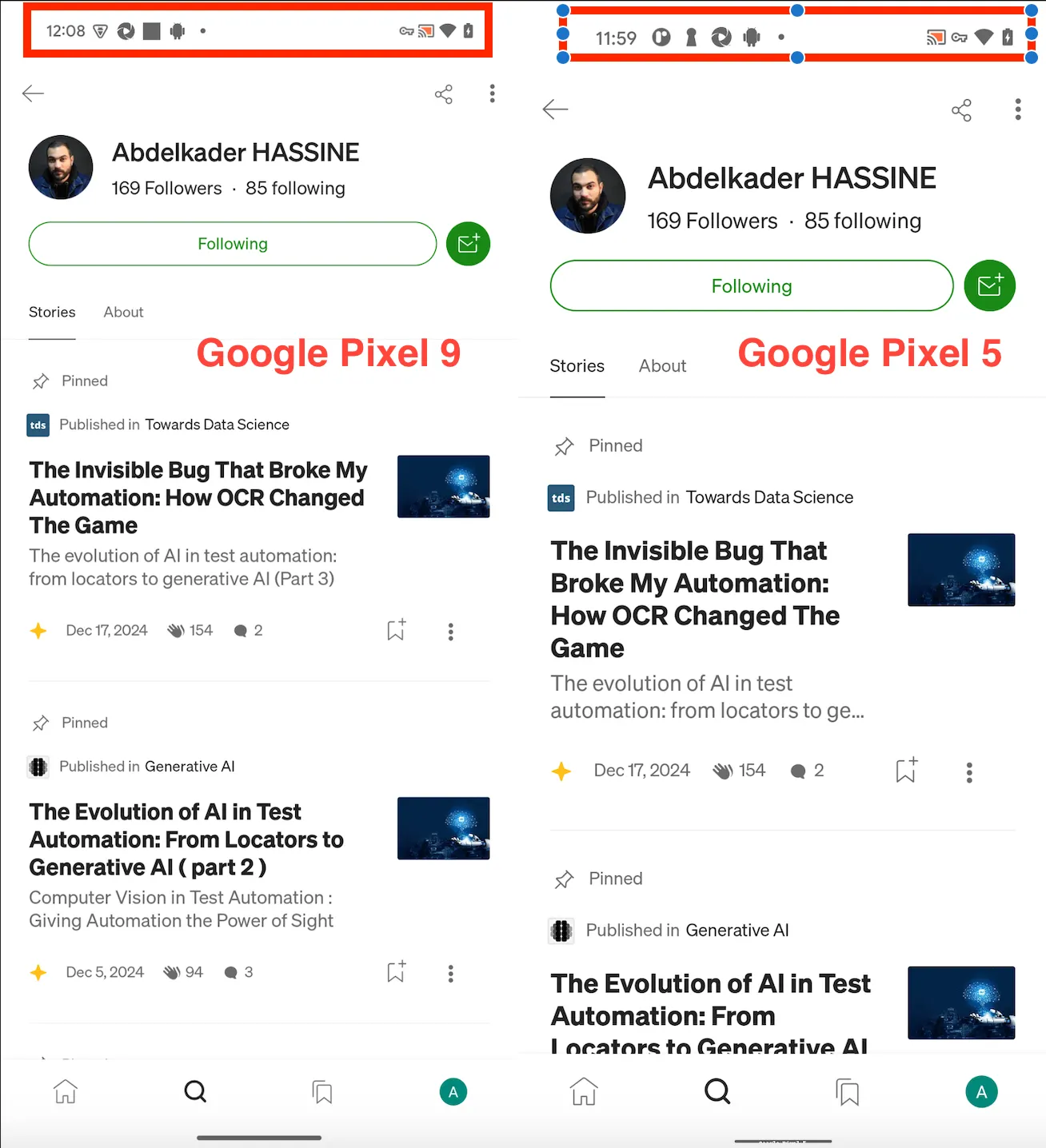
Screenshot comparison on the same device: highlighting fragility in test automation due to dynamic elements like time and notification icons causing Flaky Tests — Image from author’s laptop
Quick Tips:
- A Reference Screenshot for Each Mobile: this helps accurately capture its unique display characteristics
- Reduce Confidence Level: lower the threshold for image matching in way that allow minor variations ( around 0.9 )
- Apply a Mask: apply a color overlay on the status bar ( time and notification areas)
- Stabilize Dynamic Elements: configure the device under test (DUT) to minimize dynamic content: fixing the system time, disabling notifications etc..
- Selective Screenshot Areas: focus comparisons on critical, static sections by cropping both the reference and the runtime screenshot
4. Considering Existing Computer Vision Solutions
4.1. The Appium Image Plugin
The challenges outlined so far often lead teams to explore ready-made tools rather than building their own solutions from scratch.
Several open source and commercial options promise to address common pitfalls..
One of the most well known is the Appium Image Plugin.
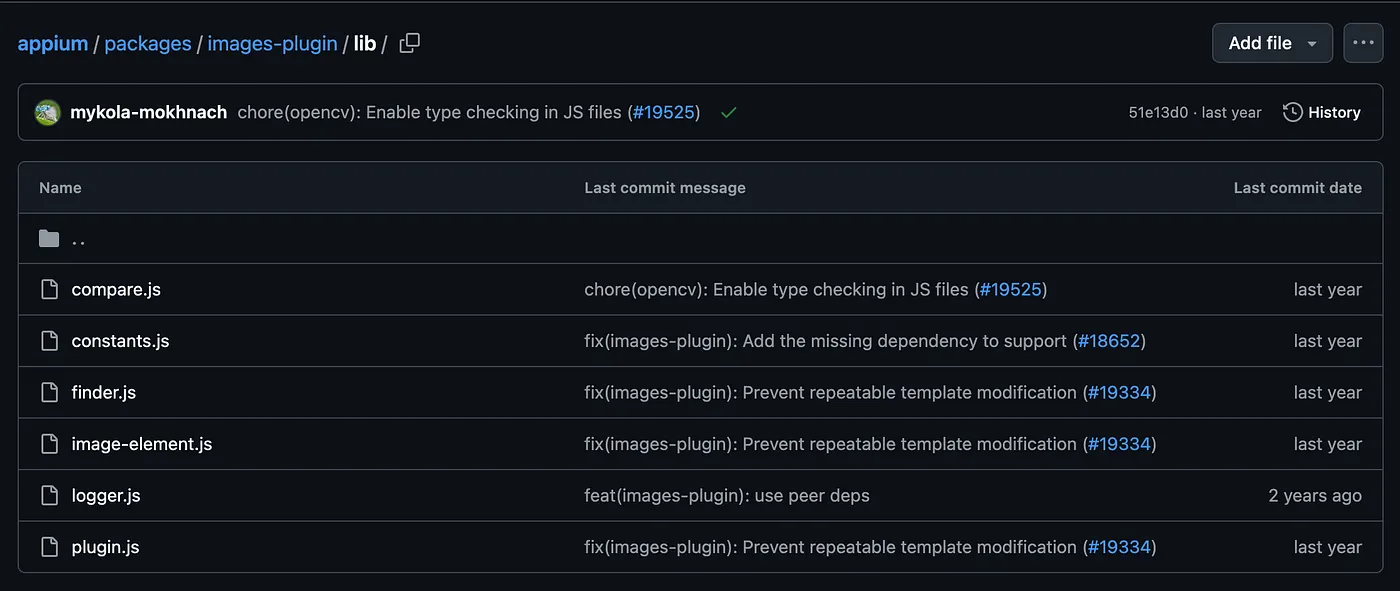
A screenshot from the Appium images plugin GitHub repository showing the core library files
What It Provides:
- Screenshot comparison
- Finding Image Template (UI element in the current mobile app screen)
How It Works:
- Rescaling: It rescales templates to handle aspect ratio differences (if settings like
fixImageTemplateScaleordefaultImageTemplateScaleset toTrue) - Matching Process: It uses OpenCV algorithm (specified in
MATCH_TEMPLATE_MODEargument) to match images based on what method was called (findTemplateImage or ScreenshotCompare) - Threshold: a certain
imageMatchThresholddefines how closely the template must match before calling it a success - Bounding Rectangles: it can filter matches by location (
containerRect) - Output: return element coordinate (if applicable) or screenshot difference (with Fail or Pass status based on an internal mechanism)
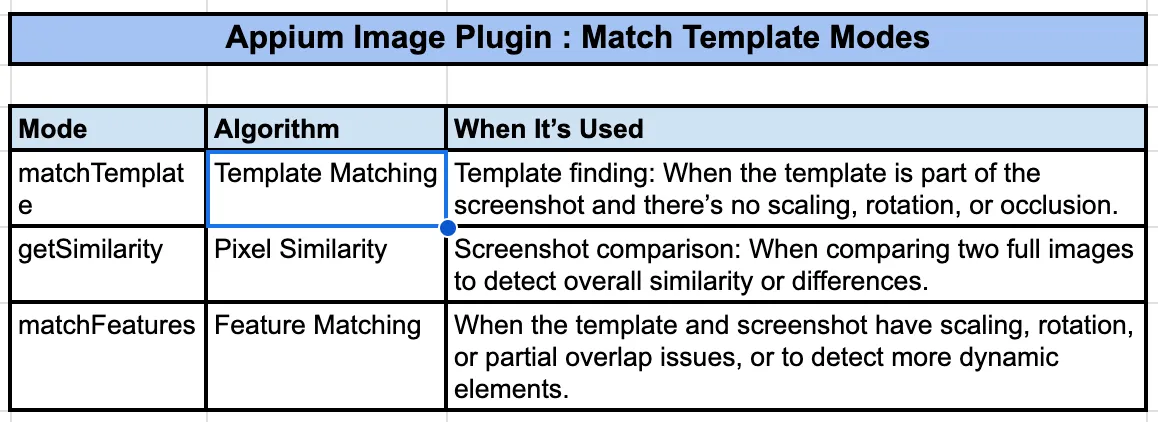
Overview of Appium Image Plugin Modes for Template Matching
Despite its convenience and integration with Appium, the plugin remains somewhat basic, leaving many advanced issues unresolved.
In many cases, custom in-house, app-specific-focused algorithm offer better performance,,,
yet neither solution provides a complete answer to scaling challenges.
4.2. Other Noteworthy Tools
- SikuliX: It provides image recognition capabilities powered by OpenCV, but doesn’t support mobile app.
- Applitools: This tool offered visual AI-powered testing, focusing on visual correctness. While promising, its pricing and integration complexity were deterrents for many project’s scope.
Final Thoughts
Computer vision techniques — template matching, screenshot comparison, can be powerful for simple, controlled scenarios. They’re straightforward to set up and effective in web app automation and mobile app when testing on the same device under test (DUT).
Yet, the moment you attempt to scale your test automation across a broader range of devices and OS versions (mobile app case especially), these methods will likely show their cracks.
They demand constant updates to reference images, fragile workarounds for dynamic UI elements, and unending troubleshooting for color and DPI mismatches.
***Where Do We Go From Here?***In the next installment, we’ll delve into advanced AI-driven methods, focusing on how neural networks, such as MobileNet-based models, can streamline element recognition. By teaching a model to identify our icons and buttons, we can reduce the need to create and manage numerous template images for different devices or screens.
Stay tuned!
More Resources
- Test.ai Appium Plugin by David Röthlisberger — https://david.rothlis.net/testdotai-appium-plugin
- Scalability Challenges in AI-Powered Test Automation — Journal of Software Testing
- Transfer Learning for Adaptive Computer Vision Models — International Conference on Machine Learning
- Real-World Limitations of Computer Vision in Mobile App Testing — Proceedings of the International Conference on Mobile Computing
- Federated Learning for Scalable and Privacy-Preserving Test Automation — Journal of Artificial Intelligence Research